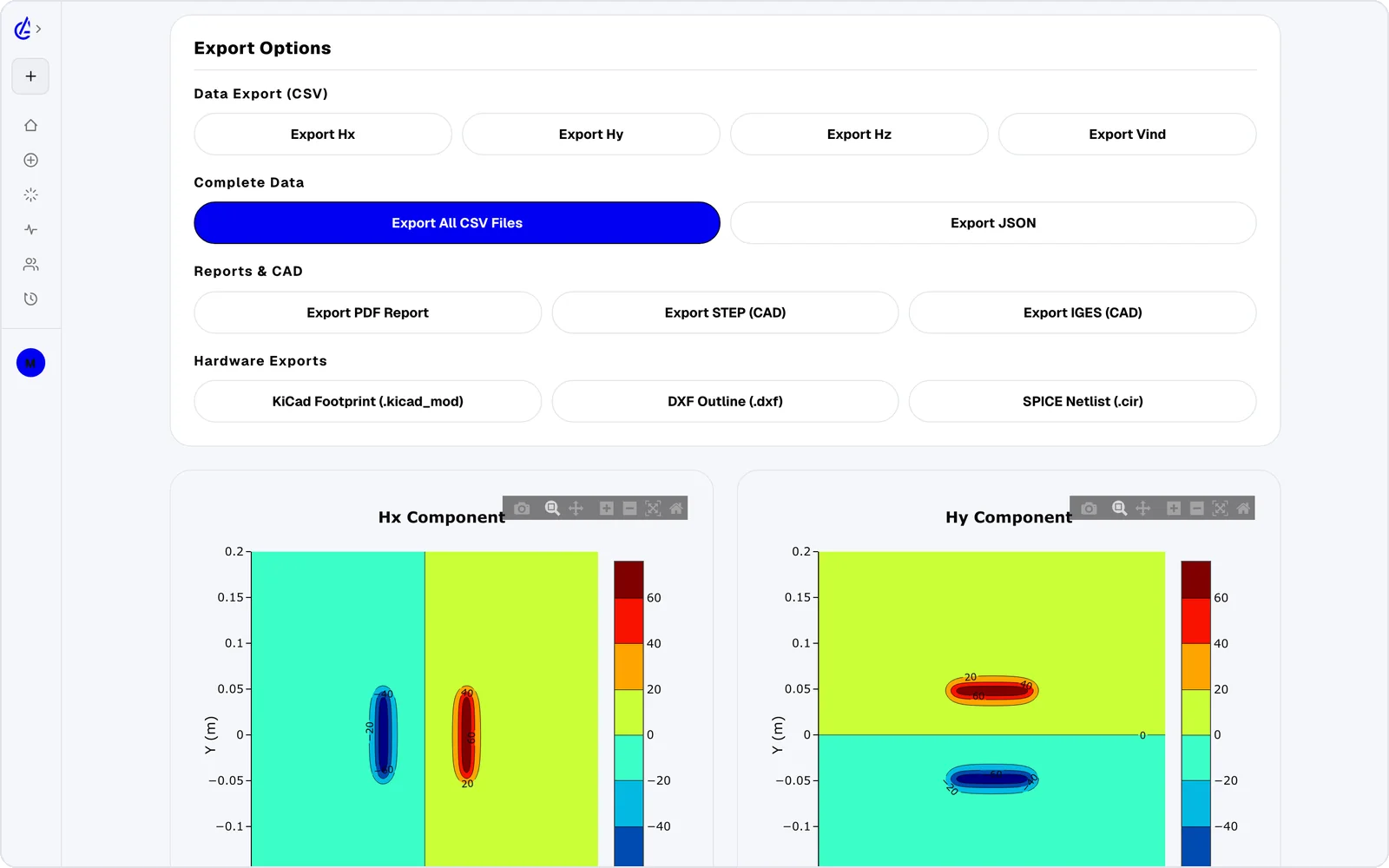
From geometry to production, in one place.
Set parameters, simulate, optimise, then export to the format your CAD or PCB pipeline actually consumes. No CAD-to-simulation round trip; no MATLAB script ferrying values.
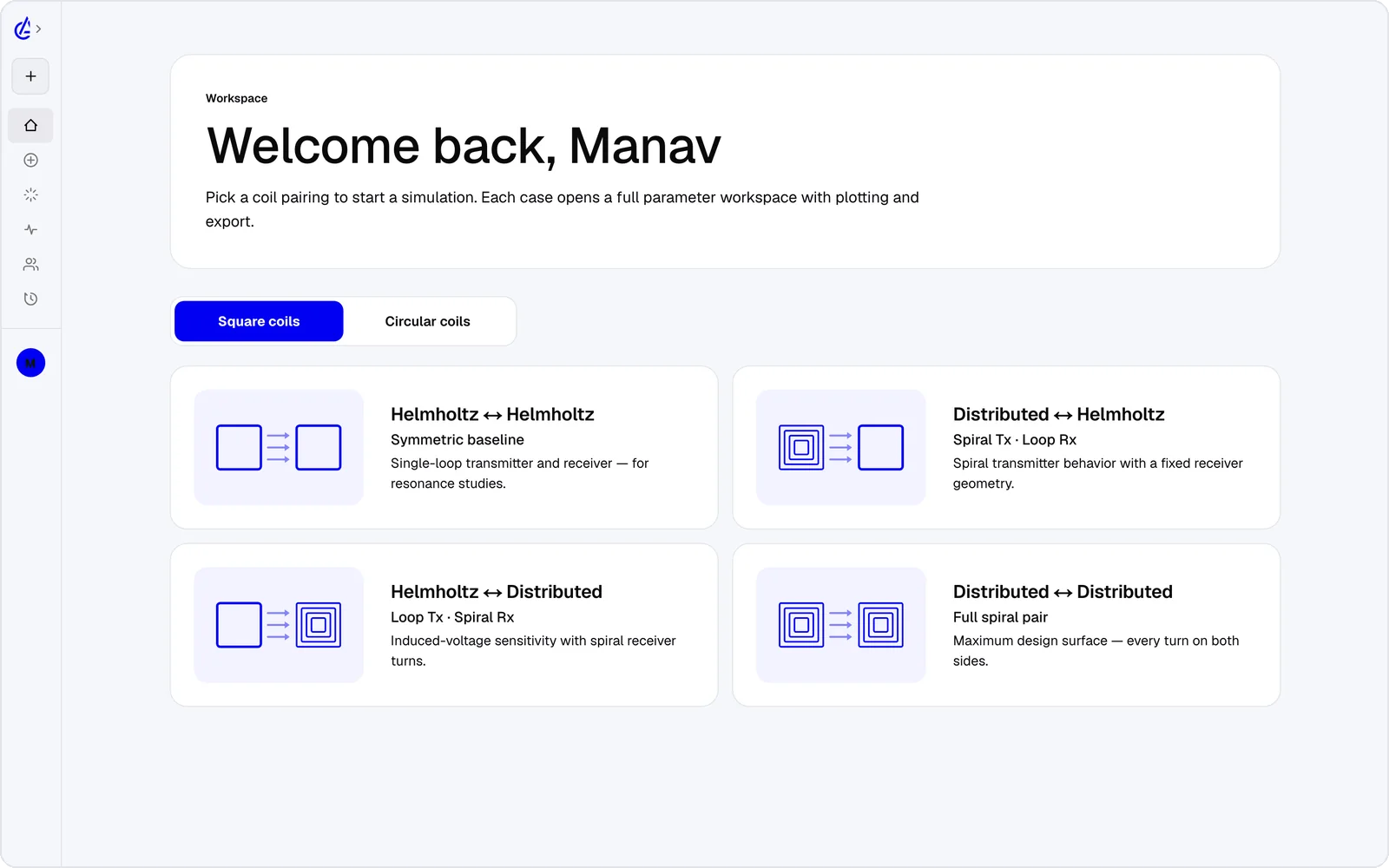
How do you design a WPT coil with AirInduct Sim?
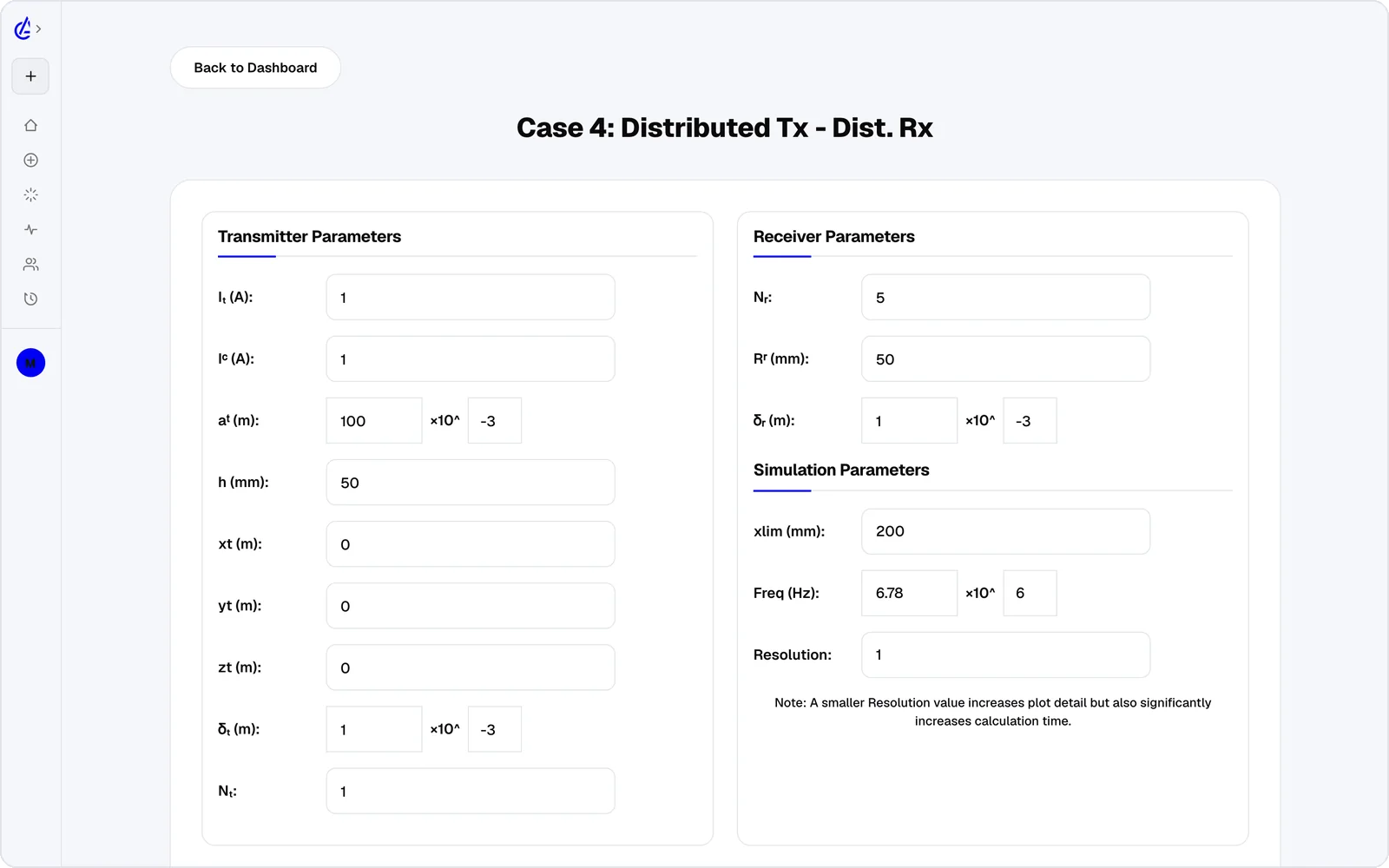
You design a wireless power coil in AirInduct Sim in four steps: choose a topology, set the geometry, read the coupling, then export. Start with one of eight coil pairs — circular or square Helmholtz, circular or square DTC (descending-turn planar spiral), or a Helmholtz–DTC cross pair. Enter turns, coil size, air gap, current and frequency, and the closed-form Biot–Savart and Neumann solver returns mutual inductance M, self-inductances L_tx and L_rx, coupling k, induced voltage and peak H field in seconds. If the coupling is too low, run a parameter sweep to see which input matters most, or let the optimizer search for a geometry that reaches a target. When the numbers work, export a KiCad footprint for the PCB, a DXF outline for mechanical CAD, a SPICE netlist for the power electronics and a PDF report for the design review. The AI Copilot can run the same workflow from a plain-language brief.
What you get
8
Coil topologies
13
Geometry parameters
3
Field render modes
4
Export formats
Export paths
Send the finished design straight to the format your CAD or PCB pipeline consumes.
- PDF report
- KiCad footprint (.kicad_mod)
- DXF outline
- SPICE netlist (L, K, R)